8 Dynamic Web Pages with Selenium
- Explain why JavaScript-rendered content is invisible to
requests+ BeautifulSoup - Decide by hand — with View Source, JavaScript switched off, and the Network tab — whether a page needs a browser at all
- Install Selenium, check what Selenium Manager finds and downloads before starting the first browser, and fix it when it fails
- Start Firefox, Edge, or Safari instead of Chrome, and say what each one needs
- Locate elements with each of Selenium’s eight strategies, and explain how
find_element()differs from BeautifulSoup’sfind_all() - Simulate user interactions — clicking, typing, and scrolling — programmatically
- Run a browser headless, with no window on your screen, and check what it loaded
- Pass fully-rendered page source from Selenium back to BeautifulSoup for parsing
- Log in to a site by hand while your code waits, keep the session, and weigh what collecting behind a login costs you and the people in the data
- Keep passwords, tokens, and session files out of your code, notebooks, and repositories
- Script the same tasks with Playwright from the terminal, and explain why its simple API does not run in a notebook
- Compare three ways to hand browser scripting to tools — an AI agent that drives the browser, an agent that writes the scraper, and Playwright’s recorder — and weigh their costs and risks
- Assess the fragility and ethical implications of browser automation
Run this chapter’s code as you read: open the companion notebook (see Appendix A for all of them).
8.1 When Static Scraping Fails
In Chapter 6, you learned to retrieve web pages with requests and parse them with BeautifulSoup. This works well for pages whose content is fully present in the initial HTML — what we call static pages. That chapter ended on a page where it failed: IMDb answered requests.get() for The Godfather with status 202 and zero characters of HTML, while a browser showed the whole page. Most modern websites are dynamic: their content is loaded, modified, or entirely rendered by JavaScript after the initial HTML arrives.
When you use requests.get() on a dynamic page, you get the HTML skeleton before JavaScript has run. The data you see in your browser may simply not exist in the response that requests receives. You can verify this by comparing requests.get(url).text with what you see in the browser — if significant content is missing from the requests version, the page is dynamic.
The solution is a tool that can execute JavaScript: a real web browser, controlled programmatically. This chapter teaches two. Selenium, the long-standing standard, runs in your notebook; Playwright, a newer tool, runs as a script from the terminal. First, though, check whether you need a browser at all.
8.2 Do You Need a Browser?
Driving a browser is slow and fragile, so check by hand first. Three checks in your own browser settle the question for most pages, and each takes about a minute. The examples use Quotes to Scrape, part of a web scraping sandbox built for practice: it serves the same quotes in several ways, each one, in the sandbox’s words, “including new scraping challenges for you.”
8.2.1 Check 1: View Source
Open https://quotes.toscrape.com/js/. Ten quotes appear on the screen, yet requests finds none of them:
Right-click the page and choose View Page Source to see exactly what the server sent (Figure 8.1). There is no <div class="quote"> anywhere in it. The quotes are in the file all the same: a <script> near the bottom holds them as a JavaScript array named data, and the page’s own code turns that array into the boxes you see.
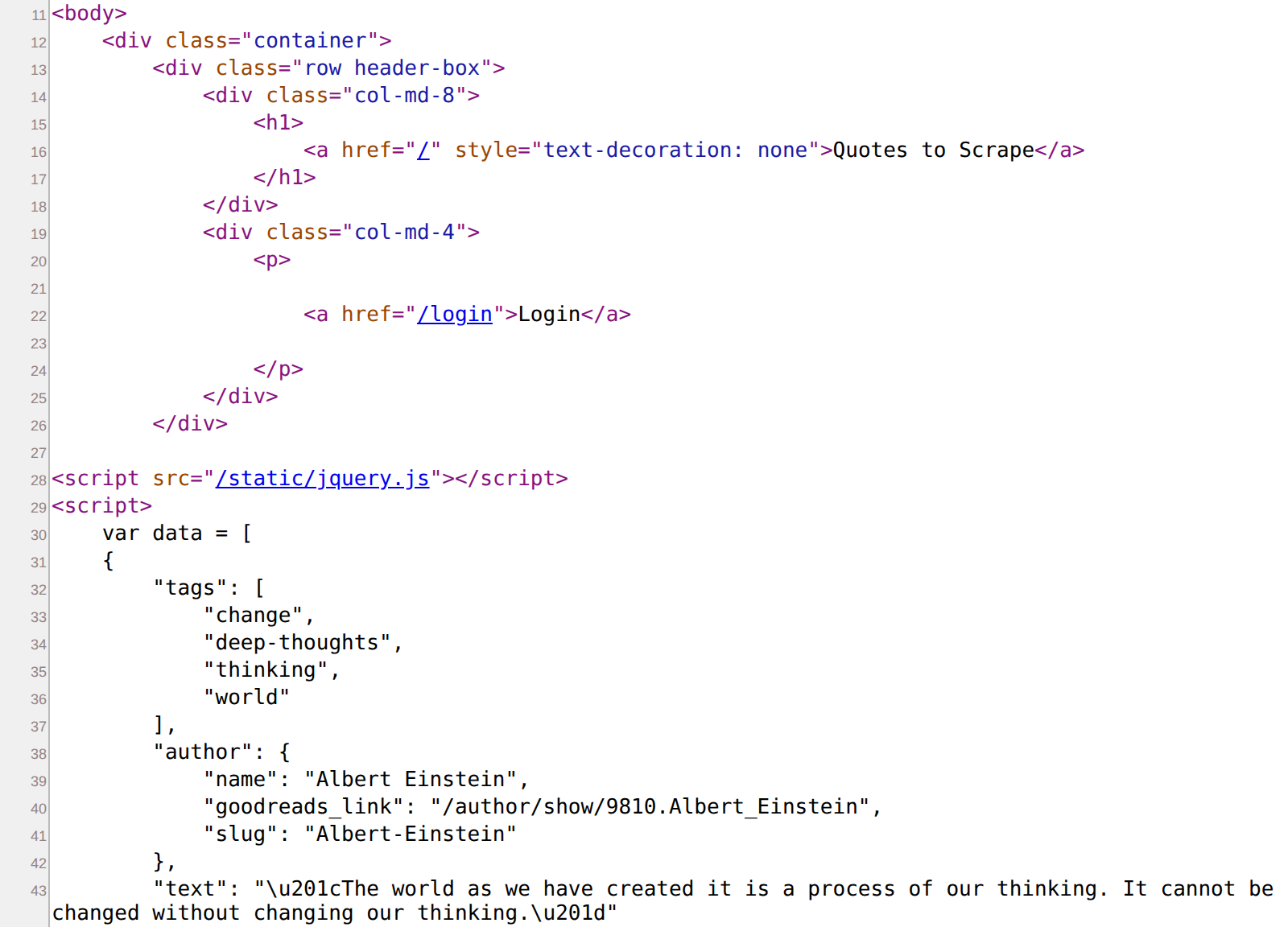
quotes.toscrape.com/js/, from <body> to the first quote, with long lines wrapped. No quote markup, but the quotes themselves sit in a script as a JavaScript array.
Data inside a script is still data your requests response already contains. A regular expression can cut the array out, and because it is written in JSON syntax, json.loads() (Chapter 4) can parse it:
8.2.2 Check 2: Turn JavaScript Off
A page with its JavaScript switched off shows roughly what requests has to work with. In Chrome’s developer tools, open the Command Menu (Control+Shift+P on Windows and Linux, Command+Shift+P on a Mac), type javascript, choose Disable JavaScript, and reload the page. Figure 8.2 shows the result on the quotes page: the title, the login link, and a Next button, but no quotes. JavaScript stays off in that tab only while developer tools are open; close them, or run Enable JavaScript, to turn it back on. Firefox and Safari have the same switch in their developer settings.
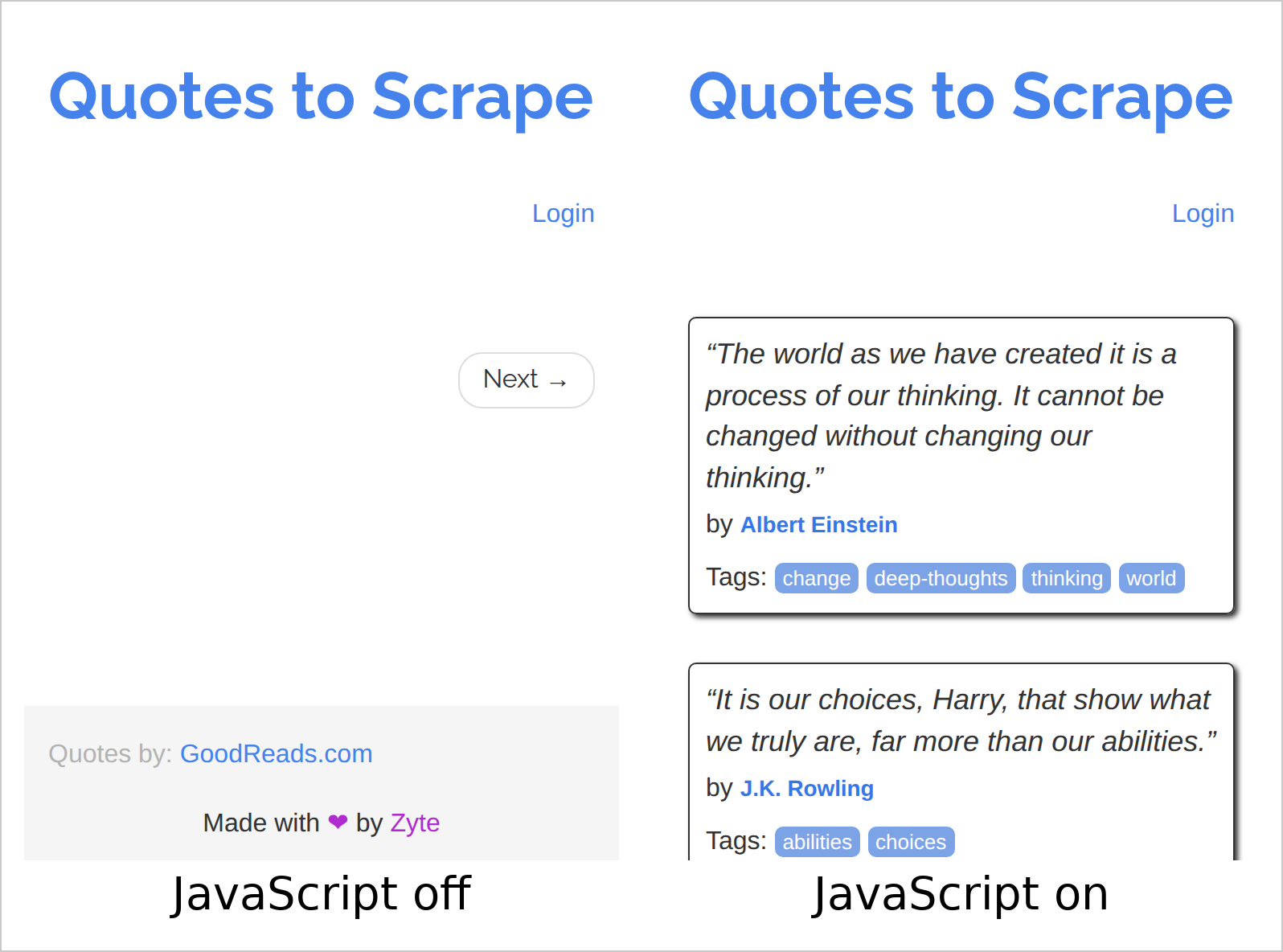
quotes.toscrape.com/js/, with JavaScript switched off and on, each in a narrow window.
8.2.3 Check 3: Watch the Network Tab
Now open https://quotes.toscrape.com/scroll. View Source shows no quotes and no data array this time, only scripts. Open the Network tab (Chapter 5), click the Fetch/XHR filter, and scroll down the page. Each time you near the bottom, a new request appears: quotes?page=2, then quotes?page=3. Click one and open Preview (Figure 8.3). The response is JSON: ten quotes at a time, plus a has_next flag that says whether another page exists.
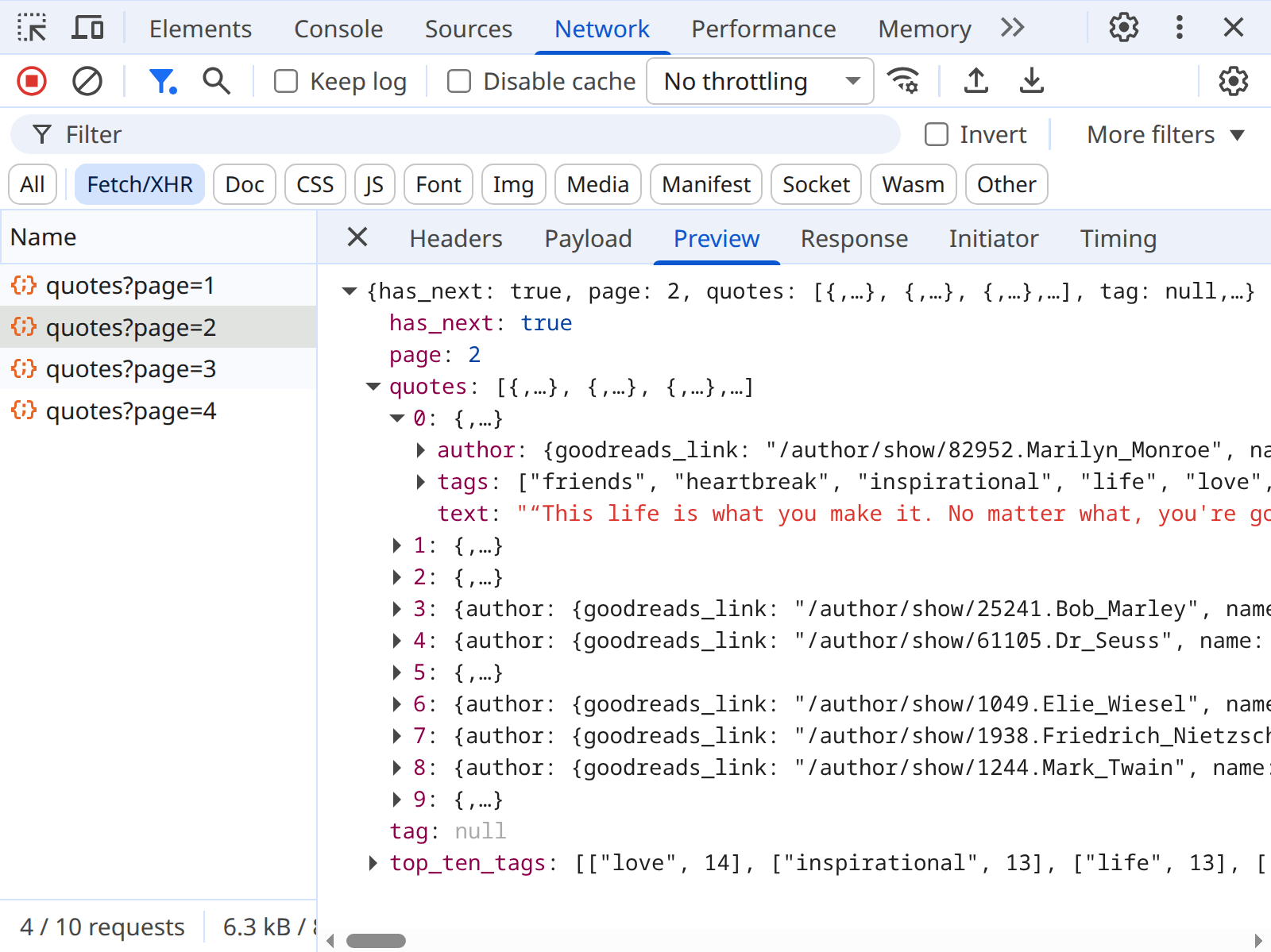
quotes.toscrape.com/scroll, filtered to Fetch/XHR. Scrolling triggered requests for pages 1 through 4 of the site’s quote API, and Preview shows page 2’s JSON.
What you have found is a hidden API, also called an undocumented or internal API. The page’s JavaScript asks the server for quotes, the server answers with JSON (Chapter 4), and the script builds the boxes you see from the reply. The API is hidden only in that nobody publishes it: no documentation lists its address or its parameters, it needs no key, and the site has made no promise to keep it working. Everything you need to use it is in the Network tab. Three steps take you from that request to a scraper: find the endpoint, test one request, and write the loop.
Find the endpoint. Click the request and open Headers. Under General, the Request URL is the address the page asked for, https://quotes.toscrape.com/api/quotes?page=2. The Request Method is GET and the Status Code is 200, and under Response Headers, Content-Type is application/json. The address has two parts that do different jobs. Everything before the ? is the endpoint, https://quotes.toscrape.com/api/quotes, which stays the same from request to request. After the ? comes the query string, page=2, which the Payload tab lists as a parameter on its own line. Click quotes?page=3 and only the parameter changes: that is what your loop will change. To copy an address exactly, right-click the request and choose Copy → Copy URL.
Test one request. Before you write a loop, make one request from Python and look at what comes back:
response = requests.get(
    "https://quotes.toscrape.com/api/quotes",
    params={"page": 1},
    headers=HEADERS,
)
print(response.url)  # requests built the query string from params
# https://quotes.toscrape.com/api/quotes?page=1
print(response.status_code, response.headers["Content-Type"])
# 200 application/json

data = response.json()
print(list(data))
# ['has_next', 'page', 'quotes', 'tag', 'top_ten_tags']
print(data["page"], data["has_next"], len(data["quotes"]))
# 1 True 10
print(data["quotes"][0]["author"]["name"])
# Albert Einstein
The request worked with nothing from the browser: no cookies and no token, only your User-Agent. Each page holds ten quotes, and has_next says whether another page follows. Two more single requests show how the API behaves before you scale up:
- One page past the end. With
page=11, the server still answers200, with an emptyquoteslist andhas_nextset tofalse. A loop that stopped only on an error would keep requesting empty pages, so stop onhas_next. - A parameter the page didn’t use.
tagisnullin these replies, a hint that the endpoint takes one. Withparams={"tag": "love", "page": 1}, it returned only quotes tagged love: ten on page 1, then four on page 2, wherehas_nextturnedfalse.
With no documentation to read, tests like these are how you learn what an undocumented API accepts. Keep each one small, and pause between them.
Write the scraper. The loop asks for one page at a time until has_next says to stop. Check the site’s terms first (Chapter 2), then request the pages directly, with a pause between them:
import time

import pandas as pd

all_quotes = []
page = 1
while True:
    response = requests.get(
        "https://quotes.toscrape.com/api/quotes",
        params={"page": page},
        headers=HEADERS,
    )
    response.raise_for_status()  # Stop on an error status rather than parse an error page
    data = response.json()
    all_quotes.extend(data["quotes"])
    if not data["has_next"]:  # The API says when to stop
        break
    page += 1
    time.sleep(1)

print(len(all_quotes))
# 100

# One row per quote; each quote's author is a dictionary of its own
api_quotes = pd.DataFrame([
    {"author": q["author"]["name"], "text": q["text"], "tags": ", ".join(q["tags"])}
    for q in all_quotes
])
print(api_quotes.shape)
# (100, 3)
The JSON arrives already structured, with no HTML to parse. Nobody promised to keep an undocumented endpoint like this one stable, though, so save what you collect as you go, as Chapter 7 recommends.
A hidden API isn’t always this easy to call. Its Request URL may carry a value that changes on every visit, such as a token or signature that the page’s JavaScript computes, so an address you copy stops working. It may answer your requests call with 401 or 403 while the page gets 200, because the page sends cookies or headers that you don’t: compare the two with Copy → Copy as cURL (Chapter 5). And some pages request no data at all, or request it only after clicks, typing, or scrolling that you would have to perform.
8.3 Setting Up Selenium
When all three checks come up empty, as on those pages, you need a browser that runs the page’s code for you. The rest of this chapter drives one in two ways: with Selenium in the notebook, and then with Playwright as a script, which can also catch a hidden API’s replies as the page receives them (“Catching the JSON Behind a Page”). The Selenium examples start on simple pages like xkcd that do not strictly need a browser, because simple pages make the tool’s basics easy to see.
Selenium requires two components: the selenium Python library and a browser driver — a small program that lets Python control a specific browser. You only need to install the library: since version 4.6 (late 2022), Selenium has come with Selenium Manager, which finds or downloads the correct driver for whatever browser you have installed, and downloads the browser as well if you have none. conda-forge, where webdata’s packages come from, installs Selenium Manager as a package of its own, selenium-manager, whenever it installs selenium.
8.3.1 Installing Selenium and Selenium Manager
Chapter 1’s webdata environment has both packages. Anaconda as it comes has neither, and neither does an older webdata. In either case, import selenium stops with ModuleNotFoundError, and none of this chapter’s browser code runs until you install them. Run this cell once:
It installs two packages from conda-forge into the Python that runs this notebook, whichever environment that is:
selenium, the Python library that you import;selenium-manager, the program that finds your browser and downloads its driver. conda-forge packages it separately. Installingseleniumwould bring it anyway, but naming it shows that there are two.
The cell takes a minute or two. It worked if one of its last lines is Executing transaction: done, or, if both packages were there already, All requested packages already installed. conda may also print notices about other things, some starting with WARNING; they don’t matter here. Then restart the kernel (Kernel → Restart Kernel…) and go on to step 1 below.
From a terminal, the same install is conda install -c conda-forge selenium selenium-manager. Type it where the environment you use is active: after conda activate webdata, or where the prompt shows (base) for Anaconda’s own environment. There, conda list selenium lists both packages, and selenium-manager --version prints Selenium Manager’s version.
Selenium finds Selenium Manager through an environment variable, SE_MANAGER_PATH, which conda activate sets. A kernel gets its environment variables from the Jupyter that started it. So in a Jupyter started without conda activate, or started before the install, Selenium can’t find Selenium Manager by itself. You don’t need to restart Jupyter to fix that: step 1 below sets the variable.
8.3.2 Before the First Browser
Creating a driver takes one line, webdriver.Chrome(), and that line does three jobs before a window appears. It reads your settings; it runs Selenium Manager, which finds your browser and downloads whatever is missing; and it starts the driver and the browser. When the line fails, the error rarely says which job went wrong. So do the first two jobs yourself, one cell at a time, and check the result before you start the browser.
The first run downloads files. The driver is about 10 MB. On a machine without Chrome, Selenium Manager also downloads Chrome for Testing, a build of Chrome made for automation, at about 190 MB. A download that size can take minutes on busy Wi-Fi, and in a cell of its own it can’t be mistaken for a frozen scraper.
Step 1: settings first. Selenium Manager takes its settings from environment variables and reads them each time it runs, so set them before anything starts it:
import os
import sys
from pathlib import Path

import selenium

print("selenium", selenium.__version__)  # the next cell needs 4.20 or later

# Where conda-forge puts Selenium Manager. Activating webdata sets SE_MANAGER_PATH to it; this sets it if Jupyter started without that.
manager = Path(sys.prefix) / ("Scripts/selenium-manager.exe" if os.name == "nt" else "bin/selenium-manager")
if "SE_MANAGER_PATH" not in os.environ and manager.is_file():
    os.environ["SE_MANAGER_PATH"] = str(manager)
print("Selenium Manager:", os.environ.get("SE_MANAGER_PATH", "inside the selenium package"))

os.environ["SE_SKIP_DRIVER_IN_PATH"] = "true"  # ignore stray drivers on your PATH
os.environ["SE_AVOID_STATS"] = "true"          # send no usage statistics (optional)
# os.environ["SE_PROXY"] = "http://proxy.example.edu:3128"  # only behind a proxy
If the version printed is older than 4.20 (April 2024), update both packages in a new cell with %conda update -y -c conda-forge selenium selenium-manager. Then restart the kernel and run this step again.
The manager lines look for Selenium Manager in webdata’s own folders, where conda-forge’s package puts it: bin on macOS and Linux, Scripts on Windows. They change nothing when SE_MANAGER_PATH is already set. With selenium from pip instead, the program sits inside the package, nothing needs setting, and the line prints inside the selenium package.
Of the three settings after them, the first matters most: it tells Selenium Manager to ignore any driver already on your system PATH and use one it has matched to your browser. The end of this section shows what happens without it. The second setting stops the usage statistics that Selenium Manager otherwise sends. The third is for networks that require a proxy; “When Selenium Manager Fails” below says when you need it.
Step 2: run Selenium Manager. Ask it for the driver and browser that webdriver.Chrome() would use, with its log turned on so that you can read each decision:
import logging

from selenium.webdriver.common.selenium_manager import SeleniumManager

logging.basicConfig(level=logging.WARNING, format="%(levelname)s %(message)s")
log = logging.getLogger("selenium.webdriver.common.selenium_manager")

log.setLevel(logging.DEBUG)    # show each decision Selenium Manager makes
paths = SeleniumManager().binary_paths(["--browser", "chrome"])
log.setLevel(logging.WARNING)  # from here on, show only its warnings
On a Linux machine with no Chrome, in September 2026, the first run printed these lines, among others (the home folder is shortened to ~):
DEBUG Found chromedriver 147.0.7727.24 in PATH: /opt/node22/bin/chromedriver
DEBUG chrome not found in the system
DEBUG Required browser: chrome 154.0.8037.57
DEBUG Downloading chrome 154.0.8037.57 from https://storage.googleapis.com/chrome-for-testing-public/...
DEBUG Required driver: chromedriver 154.0.8037.57
DEBUG Skipping chromedriver in path: /opt/node22/bin/chromedriver
DEBUG Downloading chromedriver 154.0.8037.57 from https://storage.googleapis.com/chrome-for-testing-public/...
DEBUG Driver path: ~/.cache/selenium/chromedriver/linux64/154.0.8037.57/chromedriver
DEBUG Browser path: ~/.cache/selenium/chrome/linux64/154.0.8037.57/chrome
Read it from the top. Selenium Manager found an old driver on the machine’s PATH, left there by an npm package. It found no Chrome, so it downloaded Chrome for Testing 154 and the driver made for it, and it skipped the old driver because of the first setting. Both went into its cache folder, ~/.cache/selenium (%USERPROFILE%\.cache\selenium on Windows), where the next run finds them without downloading anything. On a machine with Chrome installed, the log says Detected browser: chrome and the version instead, and only the driver is downloaded.
Step 3: check before you start the browser. Look at the two paths Selenium Manager returned:
from pathlib import Path

driver_path = Path(paths["driver_path"])
browser_path = Path(paths["browser_path"])
cache = Path.home() / ".cache" / "selenium"

print("Driver: ", driver_path, "(found)" if driver_path.is_file() else "(MISSING)")
print("Browser:", browser_path, "(found)" if browser_path.is_file() else "(MISSING)")
print("Driver chosen by Selenium Manager:", cache in driver_path.parents)
On the same machine, it printed:
Driver:  ~/.cache/selenium/chromedriver/linux64/154.0.8037.57/chromedriver (found)
Browser: ~/.cache/selenium/chrome/linux64/154.0.8037.57/chrome (found)
Driver chosen by Selenium Manager: True
Start the browser only when three things are true:
- Both paths end in
(found). - The last line says
True. Selenium Manager keeps the drivers it matches to your browser in its cache; a driver anywhere else came from yourPATH, and nothing has checked that it fits your browser. - The log from step 2 has no line starting with
WARNING. Selenium Manager warns instead of stopping when something looks wrong, so a warning now can become an error when the browser starts.
If step 2 stopped with an error instead, Selenium Manager could not find or download something. The message says what, and “When Selenium Manager Fails” below lists the usual causes.
Without the first setting, the same machine went wrong, and steps 2 and 3 caught it before the browser started. Selenium Manager downloaded Chrome 154 and worked out that it needed driver 154, then returned the old driver 147 from the PATH anyway, because a driver on your PATH wins. The log warned that “it is advised to delete the driver in PATH and retry,” step 3 printed False, and webdriver.Chrome() failed with This version of ChromeDriver only supports Chrome version 147.
8.3.3 Starting the Browser
Now create the driver:
It printed:
Browser: 154.0.8037.57
Driver:  154.0.8037.57
webdriver.Chrome() runs Selenium Manager once more, finds what step 2 downloaded in its cache, and starts the pair that step 3 checked. The two numbers should match up to the first dot. A browser window opens (Figure 8.4). This is your programmable browser — every command you issue through the driver object happens in that window.
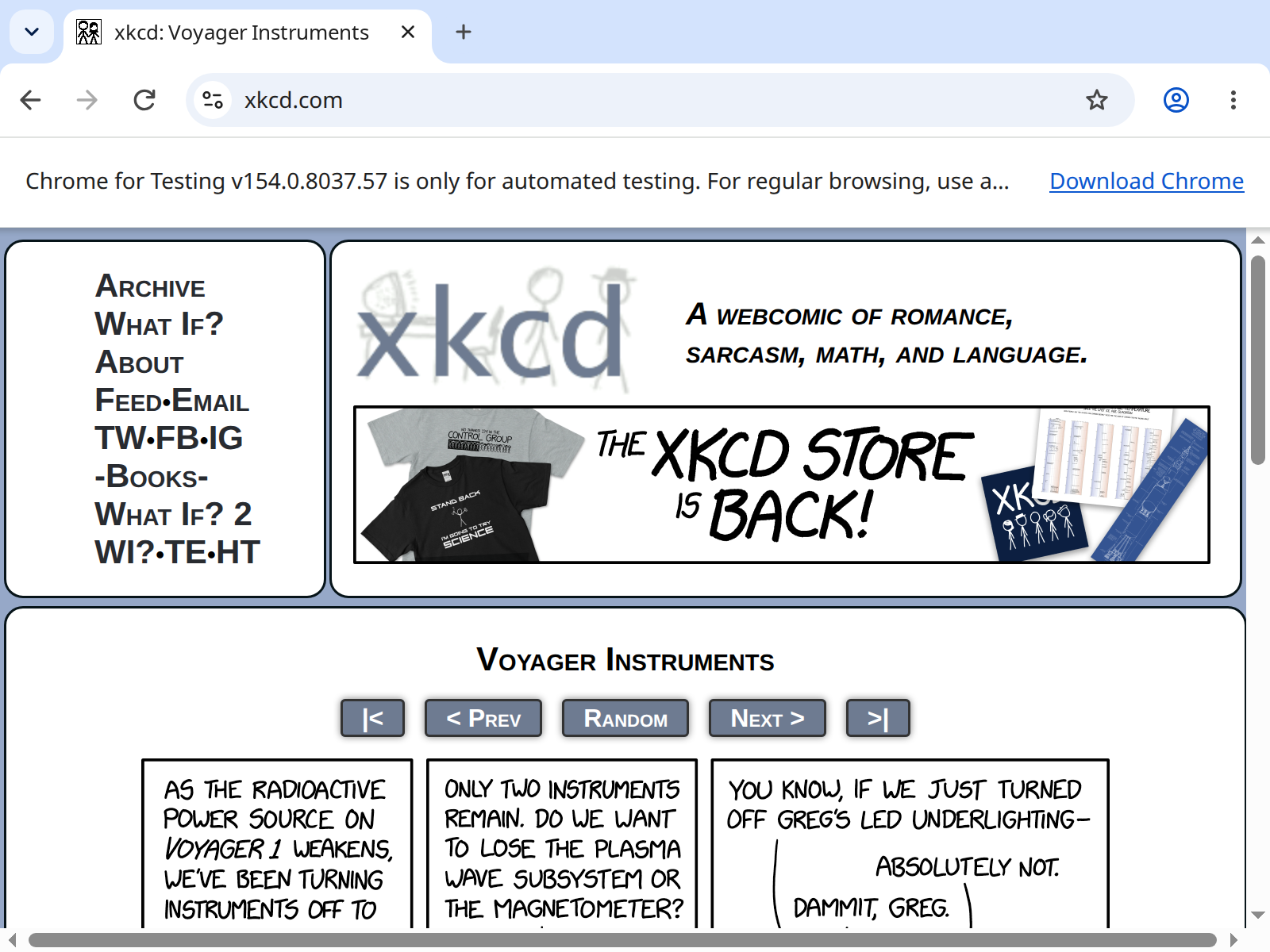
webdriver.Chrome() on a machine with no Chrome installed, in September 2026. Selenium Manager downloaded Chrome for Testing, which labels itself as meant only for automation.
8.3.4 What Selenium Manager Does
Selenium Manager is a small program that comes with Selenium: pip installs it inside the selenium package, and conda-forge installs it as a package of its own, in the environment’s bin folder (Scripts on Windows). Step 2 ran it on its own; webdriver.Chrome() runs it every time, before the browser starts. It:
- Looks for a
chromedriveralready on your systemPATH, and for Chrome itself. - Asks Google’s Chrome for Testing service which driver version matches your Chrome. If you have no Chrome at all, it downloads Chrome for Testing as well.
- Downloads the matching driver, and keeps it and any browser it fetched in a cache folder:
~/.cache/seleniumon macOS and Linux,%USERPROFILE%\.cache\seleniumon Windows. - Reuses the cache next time, checking for newer versions at most once an hour.
It also sends anonymous usage statistics (the browser, operating system, language, and Selenium version) to Plausible, a web analytics service, unless you set SE_AVOID_STATS=true, as step 1 does.
8.3.5 When Selenium Manager Fails
Unable to obtain driver for chrome, withUnable to obtain working Selenium Manager binaryhigher up in the traceback. Selenium couldn’t find Selenium Manager, so it never looked for a driver. With conda-forge’sselenium, this means Jupyter started withoutSE_MANAGER_PATH: from a terminal wherewebdatawasn’t active, or before you installedselenium. Run step 1, which sets the variable, or close Jupyter, runconda activate webdata, and start Jupyter again. Restarting the kernel doesn’t help. If the message isSE_MANAGER_PATH does not point to a file, the variable names a file that isn’t there: remove it withos.environ.pop("SE_MANAGER_PATH"), and run step 1 again.This version of ChromeDriver only supports Chrome version N. An old driver on yourPATH, left by a manual download, Homebrew, conda, or an npm package, outranks the one Selenium Manager would choose. SetSE_SKIP_DRIVER_IN_PATH=true, as step 1 does, or delete the old driver.- Downloads fail on a campus or corporate network. A proxy or firewall may block Google’s download servers. Set
SE_PROXYto your proxy’s address, or run once on an open network; after that, Selenium Manager works from its cache, andSE_OFFLINE=truestops it from trying the network at all. - Chrome is installed somewhere unusual. Browsers installed through conda or snap can hide from Selenium Manager. Give it the path: in step 2, add
"--browser-path", "/path/to/chrome"to the list, and when you start the browser, setoptions.binary_location = "/path/to/chrome". - On Ubuntu 24.04 or later, Chrome for Testing won’t start.
webdriver.Chrome()fails withsession not created: Chrome instance exited, and Chrome’s own message, in ChromeDriver’s log (“Common Issues to Debug” shows how to get it), isNo usable sandbox!. Chrome’s sandbox needs a Linux feature called user namespaces, and since Ubuntu 24.04, Ubuntu lets a program use it only if a security profile allows that program. Google Chrome, installed in its usual place,/opt/google/chrome, has such a profile; the Chrome for Testing that Selenium Manager downloads into your home folder doesn’t. Install Google Chrome from https://www.google.com/chrome/, and Selenium Manager uses it instead. Don’t fix this with--no-sandbox: Chromium’s developers write that a browser without its sandbox “should never be used when browsing the open web.” - Something is stuck in the cache. Delete the cache folder listed above and run your code again; Selenium Manager rebuilds it.
'SeleniumManager' object has no attribute 'binary_paths'. Yourseleniumis older than 4.20. Runconda install -c conda-forge "selenium>=4.20"and restart the kernel.- Your computer runs Linux on an ARM processor, such as a Raspberry Pi. Selenium’s documentation says Selenium Manager doesn’t run there, but Selenium 4.49 includes a build for 64-bit ARM, and Chrome for Testing and Firefox both publish 64-bit ARM Linux builds for it to download. If it fails anyway, or on 32-bit Linux such as 32-bit Raspberry Pi OS, where there is no Selenium Manager at all, install the browser and its driver with your system’s package manager.
Each fix is a setting or a file to delete. Put the setting in step 1’s cell, then run steps 1 to 3 again: they show whether the fix worked before you start a browser.
8.3.6 Other Browsers
This chapter uses Chrome, but Selenium drives the other major browsers the same way. Once a driver has started, driver.get(), find_element(), and the waits later in this chapter work unchanged. What differs is how each browser starts: its driver, who makes that driver, and what Selenium Manager can download for you.
| Browser | Start it with | Its driver, made by | Selenium Manager downloads |
|---|---|---|---|
| Chrome | webdriver.Chrome() |
chromedriver, Google | the driver, and Chrome for Testing if you have no Chrome |
| Firefox | webdriver.Firefox() |
geckodriver, Mozilla | the driver, and Firefox if you have none |
| Edge | webdriver.Edge() |
msedgedriver, Microsoft | the driver, and Edge if you have none (on Windows, which comes with Edge, only with administrator rights) |
| Safari | webdriver.Safari() |
safaridriver, Apple | nothing: macOS includes both |
Steps 1 to 3 work for Firefox and Edge too: in step 2, change "chrome" to "firefox" or "edge".
Firefox. Start it in place of Chrome. Its capabilities report the driver’s version under a name of its own:
In September 2026 that printed Firefox 156.0.1 and geckodriver 0.37.1. The numbers don’t match, and they shouldn’t: geckodriver has its own version numbers, and each release supports a range of Firefox versions. Selenium Manager’s log lists the ones that fit your Firefox (Valid geckodriver versions for firefox 156: ["0.37.1", ...]) and picks the newest. Firefox’s headless switch differs too: options.add_argument("-headless"), with one dash, on webdriver.FirefoxOptions(). And geckodriver downloads come from GitHub, so a network that blocks GitHub blocks Firefox’s driver even when Chrome’s downloads work.
On Ubuntu 22.04 and later, the Firefox that comes with the system is a snap, a package that runs in a container with its own view of the files, and a driver outside the container can leave it hanging at startup. Mozilla’s fix is to use the driver that comes inside the snap:
Edge. Microsoft builds Edge on Chromium, the open-source core of Chrome, so Edge takes the same options as Chrome: create them with webdriver.EdgeOptions(), and --headless=new and the other flags in “Headless Mode” below work unchanged.
As with Chrome, the two numbers match: 153.0.4234.48 for both in September 2026.
Safari. Safari’s driver comes only with macOS, at /usr/bin/safaridriver, so Selenium Manager downloads nothing for it, and on Windows or Linux webdriver.Safari() fails with Unable to obtain driver for safari. On a Mac, turn on remote automation once, in Terminal (if macOS refuses, run it again with sudo in front):
safaridriver --enableThen start it:
Safari’s automation differs from the others’ in ways you will notice:
- It runs in separate windows with an orange address bar. Like a private window, each session starts from a clean slate: it can’t see your browsing history or AutoFill data.
- A transparent “glass pane” covers the window while your code runs, so stray clicks and keystrokes can’t interfere. You can break through it to stop a stuck script, but that ends the session for good; the window stays open until you close it.
- Only one Safari session can run at a time, so two notebooks can’t both drive Safari.
- Safari has no headless mode: every session opens a window.
Playwright, later in this chapter, offers another route to Safari’s engine. It installs its own build of WebKit, the engine inside Safari, with python -m playwright install webkit, and that build runs on Windows and Linux as well as macOS. It is not Safari itself, and Playwright’s documentation recommends running it on a Mac for the closest match.
8.5 Extracting Data
xkcd is famous for its hidden alt-text messages. Right-click the comic and choose Inspect, and developer tools show where they live (Figure 8.5): the <img> tag’s alt attribute holds the comic’s name, and its title attribute holds the hover joke that readers call the alt-text.
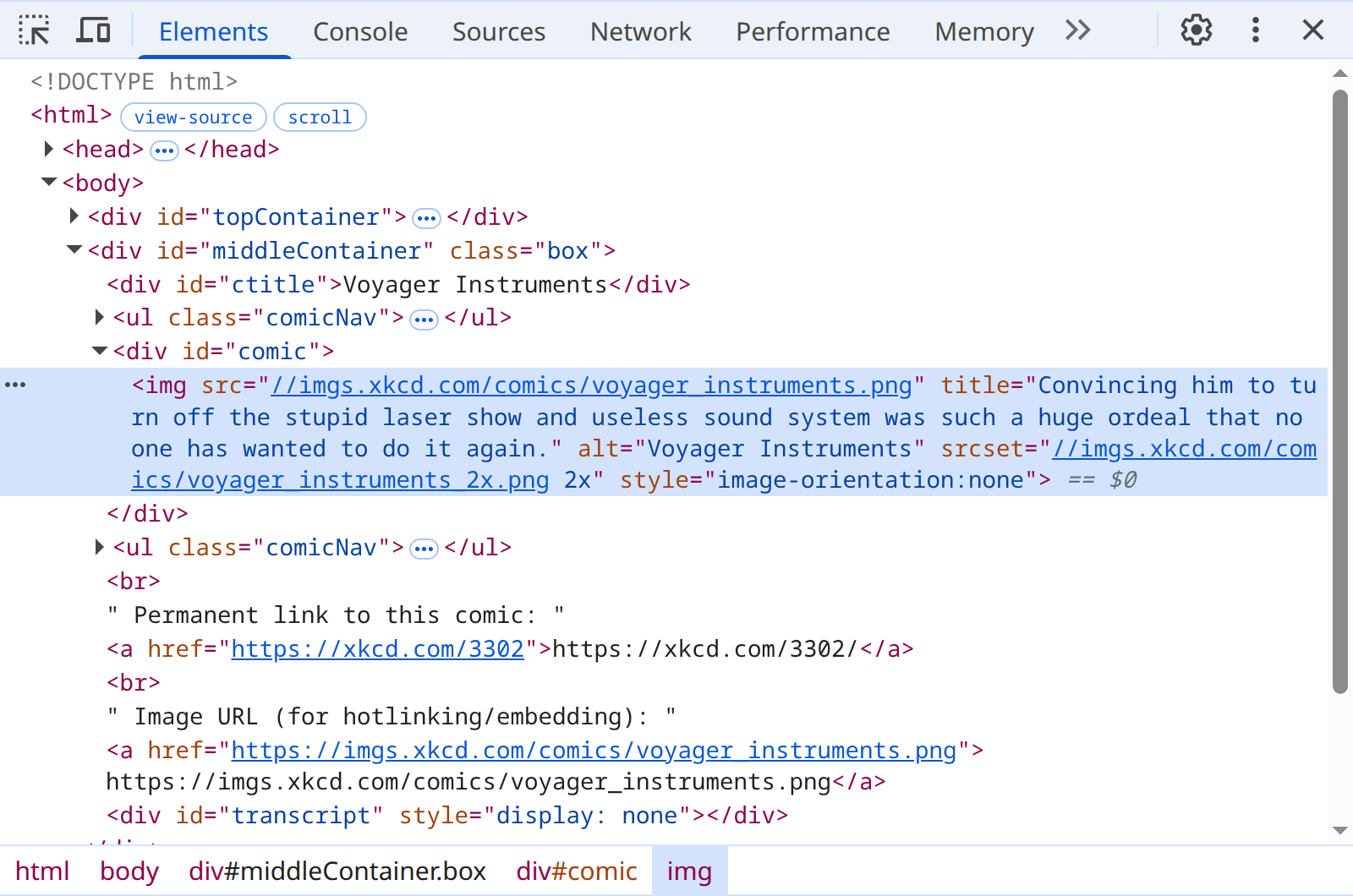
<img> selected, September 2026. Its title attribute holds the hover joke; its alt attribute holds the comic’s name.
You can extract both attributes:
8.6 Simulating Interactions
Selenium can simulate clicks, keyboard input, and scrolling — anything a human user would do:
8.6.1 Clicking
# Click the "Random" button to navigate to a random comic
random_button = driver.find_element(By.XPATH, "//ul[@class='comicNav']//a[contains(text(),'Random')]")
random_button.click()

# Extract the alt-text from the random page
import time
time.sleep(1)  # Wait for the page to load

img = driver.find_element(By.XPATH, "//div[@id='comic']//img")
print(f"Random comic title: {img.get_attribute('title')}")
8.6.2 Typing and Searching
Selenium can type into forms and submit them. We will demonstrate with Wikipedia’s search box: Wikipedia’s robots policy is permissive toward automated access, and its markup is stable enough that this example should keep working for years. (Search engines like Google, by contrast, explicitly prohibit automated queries in their Terms of Service — where you point your automation matters as much as how you write it.)
from selenium.webdriver.common.keys import Keys

# Navigate to the Wikipedia portal
driver.get("https://www.wikipedia.org")

# Find the search box by its name attribute
search_box = driver.find_element(By.NAME, "search")

# Type a query
search_box.send_keys("Colorado Buffaloes")
time.sleep(1)  # Observe autocomplete suggestions

# Press Enter to submit the search
search_box.send_keys(Keys.RETURN)
time.sleep(2)  # Wait for the results page to load

# Read the resulting page
print(driver.title)
# Colorado Buffaloes - Wikipedia

heading = driver.find_element(By.ID, "firstHeading")
print(heading.text)
# Colorado Buffaloes
When your query matches an article title exactly, Wikipedia takes you straight to that article; otherwise you land on a search results page listing candidate matches. Either way, the pattern is the one you will reuse on any site with a search form: find the input element, type with send_keys(), submit with Keys.RETURN, wait for the new page, and read the results.
Everything from Chapter 2 applies with full force to browser automation. A robots.txt disallow rule does not stop mattering because a real browser is doing the requesting, and a site’s Terms of Service does not stop applying because a script is doing the clicking. Legal risk concentrates precisely where Selenium is most tempting: automating logged-in accounts and ToS-restricted content. Check the policies of any site before you automate interactions with it. “Pages Behind a Login”, later in this chapter, takes up logged-in accounts.
8.6.3 Scrolling
Some pages load content as you scroll (infinite scroll). You can simulate this:
8.6.4 Waiting for Dynamic Content
The time.sleep() calls in the examples above are a crude approach to waiting for content to load. A better strategy is explicit waits, which pause execution until a specific condition is met:
from selenium.webdriver.support.ui import WebDriverWait
from selenium.webdriver.support import expected_conditions as EC

# This practice page waits ten seconds before its JavaScript adds the quotes
driver.get("https://quotes.toscrape.com/js-delayed/")

# Wait up to 15 seconds for the first quote to appear
element = WebDriverWait(driver, 15).until(
    EC.presence_of_element_located((By.CLASS_NAME, "quote"))
)
print(len(driver.find_elements(By.CLASS_NAME, "quote")))
# 10
A time.sleep(2) here would have looked at the page too early and found nothing. WebDriverWait returned after about ten seconds, the moment the first quote appeared.
WebDriverWait checks the condition repeatedly (every 0.5 seconds by default) and returns the element as soon as it appears, or raises a TimeoutException if the timeout expires. This is superior to time.sleep() in two ways: it does not wait longer than necessary (if the element appears in 0.2 seconds, it proceeds immediately), and it fails loudly if the element never appears (rather than silently returning an empty page).
The most common expected conditions you will use are:
presence_of_element_located— the element exists in the DOM (even if not visible)visibility_of_element_located— the element is both present and visible on the pageelement_to_be_clickable— the element is visible, enabled, and can receive clickstext_to_be_present_in_element— specific text has appeared inside an element
Use these instead of time.sleep() whenever possible. The combination of WebDriverWait with explicit conditions makes your Selenium scripts both more reliable (they wait for exactly what they need) and faster (they proceed as soon as the condition is met rather than waiting a fixed duration). You will see this pattern used in the practical workflow section later in this chapter.
8.6.5 Scraping Infinite Scroll Pages
Many modern websites load content progressively as you scroll — social media feeds, image galleries, and product listings all use this pattern. The technique for scraping these pages involves scrolling to the bottom, waiting for new content to load, and repeating until no more content appears:
def scrape_infinite_scroll(driver, max_scrolls=20, scroll_pause=2):
    """Scroll an infinite-scroll page and collect all loaded content."""
    last_height = driver.execute_script("return document.body.scrollHeight")

    for i in range(max_scrolls):
        # Scroll to the bottom of the page
        driver.execute_script("window.scrollTo(0, document.body.scrollHeight);")
        time.sleep(scroll_pause)

        # Check if the page grew
        new_height = driver.execute_script("return document.body.scrollHeight")
        if new_height == last_height:
            print(f"No new content after scroll {i+1}. Stopping.")
            break
        last_height = new_height
        print(f"Scroll {i+1}: page height grew to {new_height}px")

    # Return the fully-loaded page source
    return driver.page_source
The key insight is checking document.body.scrollHeight before and after each scroll. When the height stops growing, you have reached the end of the available content. Some sites use a “Load More” button instead of infinite scroll — for those, replace the scroll with a click on the button and watch for the button to disappear or become disabled.
On https://quotes.toscrape.com/scroll, this function stops after its tenth scroll with all 100 quotes loaded. It is also a page where you do not need it: the Network tab check at the start of this chapter found the JSON the scrolling requests, and requests collected the same 100 quotes with no browser at all.
A practical consideration: infinite scroll pages can contain thousands of items, and loading them all consumes significant memory in the browser process. Set a reasonable max_scrolls limit based on how much data you actually need. If you are collecting data for a class project, you rarely need more than a few hundred items — scrolling through an entire social media feed of 10,000 posts is both unnecessary and discourteous to the server. Remember the proportionality principle from Chapter 2: collect only the data you need for your research question.
8.7 Passing to BeautifulSoup
Once the page is fully rendered in the browser, you can extract the complete HTML and parse it with the familiar BeautifulSoup tools:
This hybrid approach — Selenium for rendering, BeautifulSoup for parsing — gives you the best of both worlds. Selenium excels at navigating, clicking, scrolling, and waiting for JavaScript to execute. BeautifulSoup excels at searching and extracting data from HTML. By combining them, you avoid the awkwardness of using Selenium’s relatively limited element-finding API for complex extraction tasks while still getting access to the fully-rendered page content.
The workflow is always the same: use Selenium to get the page into the state you need (scrolled, clicked, searched, logged in), then hand off the rendered HTML to BeautifulSoup for extraction. Think of Selenium as the hands that navigate the browser and BeautifulSoup as the eyes that read the content. This division of labor keeps your code cleaner and more maintainable than trying to do everything with Selenium alone.
When you have what you need, quit the browser:
quit() closes all of the browser’s windows and stops chromedriver too; driver.close() closes only the current window. After quit(), any call on driver raises an error, so each section that follows starts a browser of its own.
8.8 Headless Mode
Selenium doesn’t need a window on your screen. In headless mode, the browser does everything it does in a window: it requests the page, runs the page’s JavaScript, builds the DOM, and lays the page out at a set size. It just draws none of it on your screen. Your code works the same either way: driver.get(), find_element(), the waits, clicks, and scrolling from earlier in this chapter, and driver.page_source.
from selenium import webdriver
from selenium.webdriver.chrome.options import Options
from selenium.webdriver.common.by import By

options = Options()
options.add_argument("--headless=new")          # run Chrome with no window
options.add_argument("--window-size=1280,800")  # lay pages out as a 1280-by-800 window would

driver = webdriver.Chrome(options=options)
driver.get("https://quotes.toscrape.com/js/")
print(driver.title)
# Quotes to Scrape
print(len(driver.find_elements(By.CLASS_NAME, "quote")))
# 10

driver.save_screenshot("quotes-headless.png")  # what the browser drew, saved next to the notebook
driver.quit()
Headless Chrome is the same browser as Chrome in a window. It used to be a separate, simpler browser built into Chrome. --headless=new asked for the new kind from Chrome 109 on, and since Chrome 132, plain --headless means the same; the old one is now a download of its own, chrome-headless-shell. Headless mode suits three situations:
- Long or repeated collection. The browser works in the background, and no window takes over your screen or catches a stray click while you do something else.
- A computer with no screen. A server, a container, or the GitHub Actions runners of Chapter 14 have no display for a window to open on.
- More than one browser at a time. Each headless browser still runs a full browser, with a full browser’s memory, but no windows pile up on your screen.
Write and debug with a window, then switch to headless once the code works: watching the browser is how you catch a click that landed on the wrong button. The switch is one line, so keep it in one place, such as a HEADLESS = True at the top of your notebook. Playwright, later in this chapter, starts its browsers headless unless you ask for a window.
Seeing what a headless browser saw. With no window, a screenshot is how you look. driver.save_screenshot() saves what the browser drew, and it is the first thing to check when a headless run finds fewer elements than a run with a window. Set the window size too: without --window-size, headless Chrome 154 used a window 780 pixels wide, narrower than most laptop screens, and a site that lays out its pages for the window’s width can give a narrow window a different layout, with different elements.
What the site sees. Headless mode hides the browser from you, not from the site. Headless Chrome names itself in its User-Agent, HeadlessChrome/154.0.0.0 where a window would send Chrome/154.0.0.0, and any browser that Selenium drives, with a window or without, tells the page’s JavaScript that navigator.webdriver is true. Some sites check one or both, and serve different content or none. If a page works with a window and not headless, that is the likely cause, and the first thing to try is the window. Rewriting the User-Agent or hiding navigator.webdriver so that your scraper passes for a person is the User-Agent spoofing of Chapter 5, and raises the questions of Chapter 2: that you can evade a site’s detection does not mean you should.
On a server or in a container. Chrome there may need two more flags. --no-sandbox turns off Chrome’s sandbox, which keeps each page’s code from changing your computer or reading your files. Chrome won’t start as the root user without it, and many containers run as root. On your own computer, leave the sandbox on, even if Chrome won’t start: on Ubuntu, “When Selenium Manager Fails” says what to do instead. --disable-dev-shm-usage makes Chrome keep the memory its processes share in a temporary folder instead of /dev/shm, which Docker containers limit to 64 MB unless told otherwise.
What headless mode can’t do: wait for you. You can’t type into a window that isn’t there, so logging in by hand (“Pages Behind a Login”, below) needs a window. Log in with a window once, keep the session, and run headless after that.
8.9 A Practical Selenium Workflow
Screen-scraping with Selenium is inherently fragile. The Twitter scraping examples that worked in the 2019 version of this course broke completely by 2024 because Twitter (now X) redesigned its HTML to use dynamically-generated class names and require authentication for basic browsing. This is not unusual — platforms regularly change their front-end code, sometimes specifically to resist automated access.
This fragility reinforces a principle from Chapter 3: when an API is available, use it. Selenium is a powerful last resort for cases where you ethically need data that no API provides, but it is slow, resource-intensive, and brittle compared to API access. Try an API first, static scraping second, and a browser last, the order that “Choosing a Tool”, at the end of this chapter, lays out in full.
When a browser is the only way in, fragility is an argument for writing Selenium code defensively, not for avoiding Selenium. Here is a complete workflow that pulls together everything this chapter has covered. We will automate a multi-page interaction on the JavaScript version of Quotes to Scrape: navigating to the site, waiting for JavaScript to render the quotes, extracting the data, and repeating across multiple pages. As the View Source check showed, this particular page does not strictly need a browser; it stands in for sites that do, and it will not change under you. The code itself works on Quotes to Scrape and nowhere else, as the Oscars parser of Strategy 6 in Chapter 6 works only on oscars.org.
import time
from selenium import webdriver
from selenium.webdriver.chrome.options import Options
from selenium.webdriver.common.by import By
from selenium.webdriver.support.ui import WebDriverWait
from selenium.webdriver.support import expected_conditions as EC
from bs4 import BeautifulSoup
import pandas as pd

def scrape_quotes(max_pages=3):
    """Scrape quotes from Quotes to Scrape's JavaScript pages, and only there.

    The steps of the workflow carry over to other sites:
    1. Launch a headless browser
    2. Navigate to the page
    3. Wait for JavaScript to render the content
    4. Extract data via BeautifulSoup
    5. Handle pagination
    6. Clean up
    The address, tags, and class names in quotation marks belong to this site.
    """
    options = Options()
    options.add_argument("--headless=new")
    driver = webdriver.Chrome(options=options)

    all_results = []

    try:
        driver.get("https://quotes.toscrape.com/js/")  # This site's address

        for page in range(max_pages):
            # Wait for the quotes to render (up to 10 seconds)
            WebDriverWait(driver, 10).until(
                EC.presence_of_element_located((By.CLASS_NAME, "quote"))  # This site's class
            )

            # Pass rendered HTML to BeautifulSoup
            soup = BeautifulSoup(driver.page_source, "html.parser")

            # Extract data from this page, with this site's tags and classes
            for item in soup.find_all("div", class_="quote"):
                # Check that both elements exist before calling .text — the same defensive pattern you learned for static scraping
                text_tag = item.find("span", class_="text")
                author_tag = item.find("small", class_="author")
                if text_tag is None or author_tag is None:
                    continue  # Skip malformed items rather than crash
                all_results.append({
                    "text": text_tag.text.strip(),
                    "author": author_tag.text.strip(),
                    "page": page + 1
                })

            # Click "Next" if there is one; the last page has none.
            # li.next a is this site's selector for its Next link
            next_links = driver.find_elements(By.CSS_SELECTOR, "li.next a")
            if not next_links:
                break  # No more pages
            next_links[0].click()
            time.sleep(1)  # Pause between pages

    finally:
        driver.quit()  # Always clean up

    return pd.DataFrame(all_results)

quotes_df = scrape_quotes(max_pages=3)
print(quotes_df.shape)
# (30, 3)
Notice the use of WebDriverWait with expected_conditions — this is superior to time.sleep() because it waits only as long as needed for the element to appear, rather than waiting a fixed amount of time that might be too short (element not loaded) or too long (wasted time). The try/finally block quits the browser even when an error stops the function partway, such as a TimeoutException from a page whose quotes never appear. Without it, the error would skip driver.quit(), and the headless browser would keep running, out of sight, until you restart the kernel. The pagination uses find_elements (plural), which returns an empty list instead of raising an error when the last page has no Next link, so the loop ends cleanly. And notice the None checks before calling .text: dynamic pages serve malformed or incomplete items just as often as static ones do, and the defensive parsing habits from Chapter 6 carry over unchanged.
Those habits carry over; the strings don’t. Every string in quotation marks that names part of a page belongs to Quotes to Scrape: the address, the quote, text, and author classes with the div, span, and small tags that carry them, and li.next a, the selector for its Next link. Point scrape_quotes() at another site and it fails at the first wait: on xkcd’s front page, waiting for an element with the class quote raised TimeoutException after 10 seconds. Strategy 6 in Chapter 6 drew the same line: its Oscars parser rested on class names from Drupal, the system that runs oscars.org, and the Colorado legislators needed a parser of their own, built the same way. The shape is what carries over: start a browser, wait for a condition, hand page_source to BeautifulSoup, go to the next page, pause, and quit in finally. For a new site, find its own selectors in the developer tools, as “Navigating and Finding Elements” did for xkcd, and check how its pages continue: a Next link, an infinite scroll (“Scraping Infinite Scroll Pages”), or a Load More button.
8.10 Pages Behind a Login
Some pages show their data only after you log in: a forum’s member pages, a course site, a social feed. A browser that your code drives can log in the way you do, and that makes Selenium tempting when an API is out of reach. Chapter 3 priced the alternatives: X’s enterprise API at $42,000 a month and up, and Reddit’s at $0.24 per 1,000 calls. Logging in with your own account costs no money. This section shows how to do it without putting your password in your code, and then what it does cost.
8.10.1 Logging In by Hand
Quotes to Scrape has a practice login page that accepts any username and password. Once you’re logged in, each quote shows a link to its author’s Goodreads page, which visitors who aren’t logged in don’t see. Start a browser with a window, and let the notebook wait while you log in:
from selenium import webdriver
from selenium.webdriver.common.by import By

driver = webdriver.Chrome()
driver.get("https://quotes.toscrape.com/login")
input("Log in in the Chrome window, then press Enter here")  # the cell waits until you press Enter

driver.get("https://quotes.toscrape.com/")
links = driver.find_elements(By.LINK_TEXT, "(Goodreads page)")
print(len(links))
# 10 when you are logged in; 0 when you are not
input() puts a text box under the cell and waits. Meanwhile you log in in the browser window, as you would on any day. Your password goes from your keyboard to the site, and never into your code, your notebook, or its outputs. So does a two-factor code, if the site asks for one.
8.10.2 Keeping the Session
When you log in, the site sets a session cookie: a token your browser sends with every request after that, so the site knows it’s you without asking for your password again. Selenium starts each browser with a new, empty profile, the folder where a browser keeps its cookies and settings, so the cookie is gone after driver.quit(). To keep it, give Chrome a profile folder of its own:
from pathlib import Path

from selenium.webdriver.chrome.options import Options

# A profile folder outside your project folder, so it never ends up in git
profile = Path.home() / "selenium-profiles" / "quotes"

options = Options()
options.add_argument(f"--user-data-dir={profile}")

driver = webdriver.Chrome(options=options)
driver.get("https://quotes.toscrape.com/login")
input("Log in in the Chrome window, then press Enter here")
driver.quit()
The next run can start from that profile, headless, and skip the login:
options = Options()
options.add_argument(f"--user-data-dir={profile}")
options.add_argument("--headless=new")

driver = webdriver.Chrome(options=options)
driver.get("https://quotes.toscrape.com/")
print(len(driver.find_elements(By.LINK_TEXT, "(Goodreads page)")))
# 10: the session survived
driver.quit()
On the practice site, in October 2026, the session survived the restart. A real site decides how long its sessions last and can end one whenever it likes, so check at the start of every run, by counting something that only a logged-in visitor sees, before you collect anything. Only one browser at a time can use a profile folder, so quit one driver before you start the next.
The profile folder now holds what the cookie holds: a way into your account that needs no password and no two-factor code. Treat it like your password. “Passwords and Other Credentials”, below, says how.
8.10.3 What Changes When You Log In
The technical difference between this scraper and a logged-out one is a cookie. The other differences are larger:
- The Terms of Service bind you. You agreed to them when you made the account, and most platforms’ terms forbid automated collection. Chapter 2 traced where the legal risk falls: Meta’s 2024 contract claims against Bright Data failed because Bright Data collected only what anyone could see without logging in, while hiQ lost to LinkedIn on breach of contract after it had agreed to LinkedIn’s terms. Logging in moves you from the first situation toward the second.
- What you see isn’t public. A logged-in page shows what the site shows you: members-only posts, friends’ content, a feed shaped by your account. The people in it shared it with an audience, not with a dataset, and an IRB treats it differently from public data (Chapter 2, “IRBs and Web Data”).
- Your account is you. Every request your code makes, it makes as you, and the site can tell a script from a person: Selenium’s browser reports
navigator.webdriverastrueto every page. If the site objects, the account is what you lose: in 2021, Meta disabled the personal accounts of the NYU researchers behind Ad Observatory over how they collected data (Chapter 3). Don’t open accounts under made-up identities to collect data, either. Audits that need them, such as the discrimination studies behind Sandvig v. Barr, break a site’s terms on purpose, and they need an IRB’s review and legal advice before they start. - Cheaper isn’t free. A logged-in browser trades an API’s price for risks that you carry: to your account, under a contract, and to the people whose posts you collect. Before you log in to collect, try the routes that ask first: the platform’s API or researcher program, data donated by consenting users (Chapter 3), or a message asking the site for the data.
8.10.4 Passwords and Other Credentials
A credential is anything that proves to a site that you are you: a password; an API key or token, like those in Chapter 11 and Chapter 12; and a session cookie, which a profile folder keeps. Whoever has one can act as you until it expires or you change it. Scraping projects leak credentials in a few predictable ways:
| Don’t | Because |
|---|---|
Type a password into a code cell: password = "..." |
The notebook file saves it. Push or submit the notebook, and the password goes too. Deleting the line later leaves it in git’s history. |
| Print a password, token, or cookie | Outputs are saved in the notebook file, and they go where the notebook goes. |
Keep a .env file, a saved cookie file, or a profile folder inside the project |
git add . commits it. A saved cookie or profile logs in without the password, and without the two-factor code. |
| Paste a password or cookie into an AI assistant | It goes to the AI provider with the rest of the conversation. |
| Share one account among a team, or use someone else’s | Nobody can tell who did what, and the account’s owner answers for all of it. |
And the habits that prevent each one:
- Log in by hand when you can. The
input()pause keeps the password out of your code entirely. - When code must log in by itself, as a job that runs on a schedule must, read the password from an environment variable, the way Chapter 11 reads API keys, or ask for it with
getpass(), which hides what you type and keeps it out of the notebook:
import os
from getpass import getpass

from selenium.webdriver.common.keys import Keys

# From the environment if it's set there, otherwise typed in; either way it isn't in the notebook
password = os.environ.get("QUOTES_PASSWORD") or getpass("Password: ")

driver = webdriver.Chrome()
driver.get("https://quotes.toscrape.com/login")
driver.find_element(By.ID, "username").send_keys("your-username")
driver.find_element(By.ID, "password").send_keys(password, Keys.RETURN)- Keep secret files and profile folders out of the repository. Put them outside the project folder, as the profile above is, or list them in
.gitignorebefore your first commit. - Prefer a credential made for programs. An API token or an app password, like Bluesky’s in Chapter 12, can be limited to what your code needs and revoked without changing your password.
- Use your own account, with two-factor authentication on, or one that the platform’s researcher program issues you.
- Clear outputs before you share a notebook, and look through it for anything secret before you push.
- If a credential leaks, change it at once. Change the password, or revoke the token, and log out the account’s other sessions if the site lets you. Deleting the file from GitHub doesn’t undo the leak, because earlier commits still hold it.
For a deeper introduction to environment variables, .env files, and keeping secrets out of version control, see Missing Manual Chapter 34: Environment Variables and Secrets.
8.11 Playwright: Scripting a Browser
Playwright is the newer way to drive a browser. Microsoft released it in January 2020, built by engineers who had worked on Puppeteer, a browser automation library at Google. It does what Selenium does, with three differences you will notice right away: it installs its own browsers, it waits for elements on its own, and it can write a script for you while you click. It also runs best from the terminal rather than from a notebook, so the code in this section is written as standalone scripts, not notebook cells.
8.11.1 Installing Playwright
Playwright takes two installs: the Python library, and the browsers it drives. The library is in webdata (chapter 1). On conda-forge it is called playwright-python, so an older environment adds it with conda install -c conda-forge playwright-python. The browsers are one download, in a terminal where webdata is active:
python -m playwright install chromiumType python -m playwright, not the shorter playwright that Playwright’s own documentation shows. On conda-forge, playwright-python depends on a second package, playwright, which is Playwright for Node.js, and both packages install a command named playwright. Only one file can have that name, so the command can end up running the Python of another environment, or of one you have since deleted. python -m playwright runs the library with the Python of the environment you activated, whatever the playwright command points to. Use it for every Playwright command in this chapter.
This command downloads Playwright’s own copy of Chrome for Testing plus a smaller headless build. On Linux in October 2026, that came to about 320 MB of downloads and 660 MB on disk, so run it on a fast connection rather than on busy class Wi-Fi. Like Selenium Manager, Playwright fetches browsers for you; unlike Selenium Manager, it pins each Playwright release to one browser version, so upgrading Playwright means downloading new browsers too. The pin comes from Playwright’s driver, the Node.js program that the Python library starts, and on conda-forge the driver can be a release ahead of the library. Tested in a fresh webdata on 2026-10-05, playwright-python 1.62.0 ran the driver from playwright 1.63.0, which downloaded Chrome for Testing 153.0.8010.12; python -m playwright --version reports the library’s 1.62.0.
8.11.2 A First Script
Save this as xkcd_alt.py and run it from a terminal with python xkcd_alt.py:
from playwright.sync_api import sync_playwright

with sync_playwright() as p:
    browser = p.chromium.launch()  # Headless by default; pass headless=False to watch it work
    page = browser.new_page()
    page.goto("https://xkcd.com")

    img = page.locator("#comic img")
    print(img.get_attribute("alt"))    # The comic's name
    print(img.get_attribute("title"))  # The hover joke

    browser.close()
Line by line it mirrors the Selenium version: page plays the role of driver, page.goto() replaces driver.get(), and a locator replaces find_element(). The with block shuts Playwright down even if your code crashes, the job that try/finally and driver.quit() do in Selenium.
8.11.3 Locators Wait for You
A locator is a description of how to find an element, not the element itself. Playwright looks it up only when you use it, and when you act on it or read from it — click it, fill it in, read its text or an attribute — it waits up to 30 seconds for the element to appear. Here is the ten-second practice page again:
inner_text() waited about ten seconds without a WebDriverWait in sight. Not every method waits, though: count() answered at once, before any quotes existed. Methods that act on an element or read from it wait; methods that report on the page as it stands right now do not.
8.11.4 Catching the JSON Behind a Page
Playwright can also listen to the page’s own network traffic, the requests you watched in the Network tab, and hand you their JSON:
This is the chapter’s third by-hand check, written as code. Use it when the JSON request depends on something only the browser can supply, such as a token the page’s JavaScript computes, so calling the endpoint yourself with requests fails. To parse the rendered page instead, page.content() returns its current HTML, which you hand to BeautifulSoup exactly as you did with driver.page_source.
8.11.5 Why Not in the Notebook?
Paste the first script into a notebook cell and run it, and Playwright refuses:
Error: It looks like you are using Playwright Sync API inside the asyncio loop.
Please use the Async API instead.
Jupyter runs an event loop, the machinery that lets Python juggle many waiting tasks at once, for its own purposes. Playwright’s straightforward interface, its sync API, needs to run an event loop of its own, and it cannot start one inside Jupyter’s. There are two ways around this. The first is this chapter’s choice: keep Playwright in .py scripts and run them from the terminal. The second is Playwright’s async API, which does run in a notebook, at the price of putting await in front of nearly every call:
Forget one await and you get a coroutine object, a placeholder, instead of a result, and nothing stops your code from carrying on with it. That trap, plus the new syntax, is why this chapter’s exercises stay with Selenium in the notebook.
8.11.6 Recording a Script with Codegen
You do not have to write a Playwright script from scratch. Run:
python -m playwright codegen --target python https://quotes.toscrape.com/Two windows open: a browser, and the Playwright Inspector (Figure 8.6). Everything you do in the browser becomes a line of Python in the Inspector. Clicking the tag change and then an author’s (about) link recorded these lines:
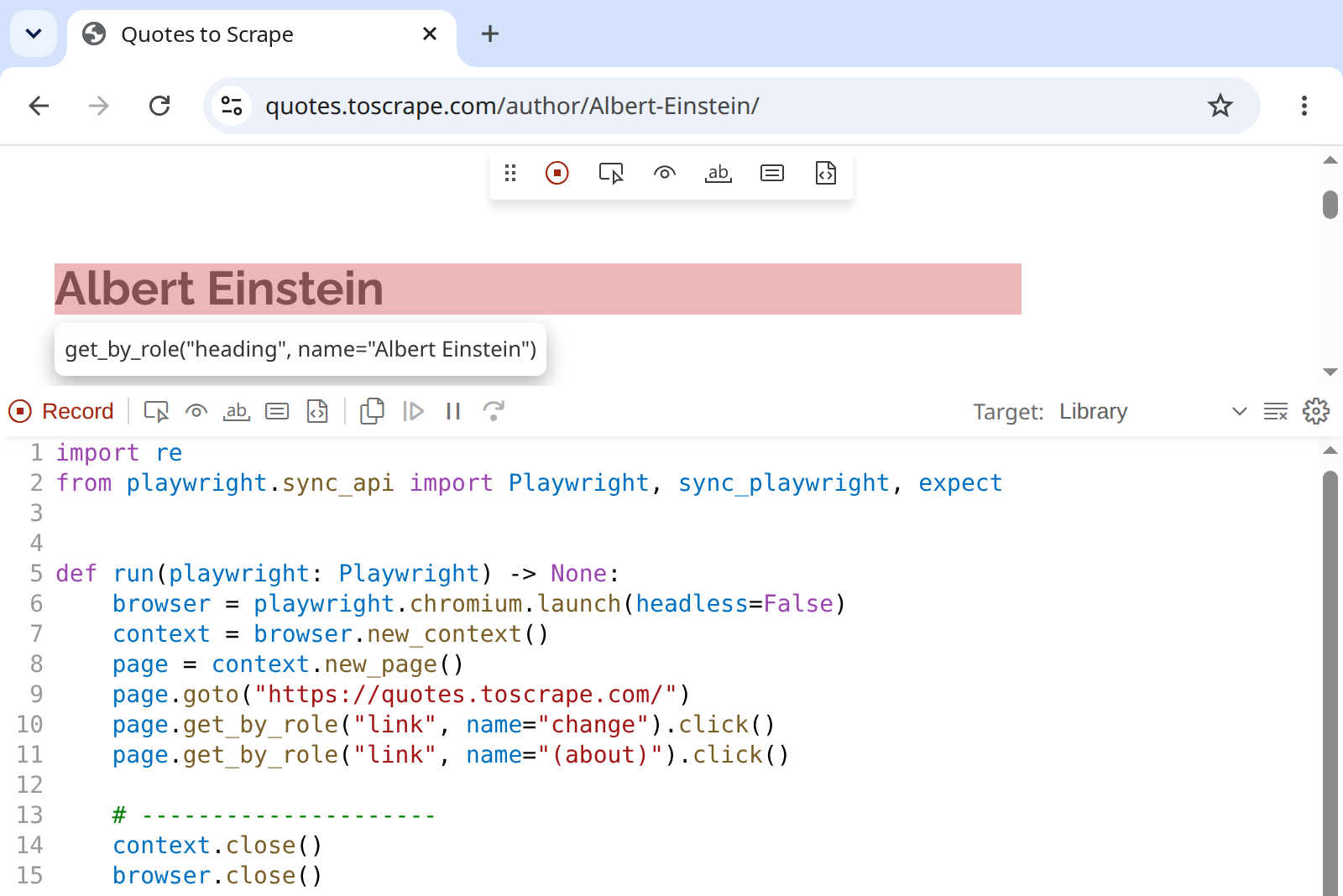
Codegen writes role-based locators: “the link whose visible name is change” rather than a CSS path such as div.tags > a:nth-child(2). Role-based locators survive a redesign that renames CSS classes, but they break when the visible text changes, so read what the recorder wrote before you trust it. A recording is a first draft: it reproduces your clicks, but it extracts nothing, so the scraping part is still yours to write.
8.12 Letting an AI Agent Drive
The newest way to script a browser is not to write the script at all, and to ask an AI assistant to do the work. Playwright is the engine behind much of this.
8.12.1 An Assistant at the Wheel
The Model Context Protocol (MCP) is a standard way to plug outside tools into an AI assistant, much as USB is a standard way to plug devices into a computer. Playwright MCP is one such tool: once it is connected, an assistant that speaks MCP can open a browser and call actions such as browser_navigate, browser_click, browser_type, and browser_snapshot. Most MCP-capable assistants, from coding editors like VS Code and Cursor to chat apps like Claude Desktop, accept the same few lines of configuration; the server itself needs Node.js 20 or newer:
The assistant does not look at the page the way you do. Playwright MCP sends it an accessibility snapshot: a text outline of the page’s parts by role and name, the same structure a screen reader uses. Playwright’s own aria_snapshot() method produces this kind of outline. Here is the top of xkcd’s comic area, from September 2026:
Most of what the assistant knows about a page arrives this way. A page built from real links, labeled buttons, and alt text is easy for it to use; a page built from unlabeled <div>s is hard. A lighter-weight sibling, the Playwright CLI, gives coding agents such as Claude Code and GitHub Copilot the same browser control through terminal commands instead of MCP.
8.12.2 Driving versus Writing the Scraper
You can put an agent to work in two ways, and for research they have very different consequences.
Let it drive. Ask in plain English for the data: “Collect every quote tagged love on quotes.toscrape.com, with its author.” The agent navigates, reads snapshots, clicks, and reports back. This is flexible and quick to try, but every run is a new improvisation: two runs can click different things and return different results, each run costs money in model usage, and what you end up with is a result, not a method. Nobody, including you six months later, can rerun exactly what happened.
Let it write. Ask instead for a script: “Explore quotes.toscrape.com with Playwright and write me a Python script that collects every quote tagged love.” The agent explores the same way, but hands you code: the same kind of first draft codegen produces from your clicks, produced this time from a description. You read it, test it, commit it to version control, and rerun it for free, and a reviewer can check it.
For research, prefer the second. Your methods section can cite the script’s version, and a reviewer can rerun it; an agent’s one-time browsing session leaves nothing to cite or rerun.
Everything in Chapter 2 applies when an AI does the browsing, because the requests are still yours. Check robots.txt and the Terms of Service before you point an agent at a site. The page content goes to the AI provider along with your instructions, so keep agents away from pages holding private or confidential data. Watch for prompt injection: text on a page, even text you cannot see, can try to give the agent new instructions. And never let an agent drive a browser that is logged in to your own accounts: it acts with your identity, and you answer for what it does. Playwright MCP opens a visible browser by default; leave it that way, and watch.
8.13 Choosing a Tool
With the full toolkit in hand, here is the decision tree for choosing your data access method:
- Is there an API? Use it. APIs are faster, more reliable, and more structured (see Chapter 10 through Chapter 13).
- Is the content in the page source? Use
requests+ BeautifulSoup (see Chapter 6). If the data sits inside a<script>, cut it out and parse it withjson.loads(). - Does the Network tab show the data arriving as JSON? Request that JSON directly with
requests, politely. - Is the content rendered by JavaScript you cannot get around? Drive a browser: Selenium in a notebook, or Playwright in a script. Either way, expect it to be slower, more fragile, and more resource-intensive than the options above.
- Is the content behind a login? This is where ethical judgment matters most. Look first for a route that asks: an API, a researcher program, data donation, or the site’s permission. A browser you log in yourself works, but it stakes your account, a contract you agreed to, and the privacy of people who shared with an audience, not with you. See “Pages Behind a Login” above, and Chapter 2.
When the answer is a browser, the two tools differ in ways that decide which one fits your project:
| Selenium | Playwright | |
|---|---|---|
| Install | In webdata (chapter 1) |
In webdata, then python -m playwright install chromium |
| Browsers | Chrome, Firefox, Edge, or Safari, as installed; Selenium Manager downloads Chrome for Testing, Firefox, or Edge if yours is missing | Its own copies of Chromium, Firefox, and WebKit, pinned to each Playwright release |
| In a notebook | Yes | Only through the async API and await |
| Waiting | Explicit, with WebDriverWait |
Automatic when you act on or read an element |
| Recording clicks | Selenium IDE, a separate browser extension | playwright codegen, built in |
The exercises below give you practice at every branch of this tree.
8.14 Recommended Exercises
This guided exercise is the chapter’s take-home assignment. Work through it in the companion notebook, filling in each empty code cell, and submit the completed notebook. The steps build on one another, so do them in order — everything you need appears in this chapter or an earlier one.
You will measure the difference between what a static request sees and what a browser sees, on a site where that difference matters.
Step 1 — Fetch statically first. Choose a JavaScript-heavy site — a news site’s live section, a social feed, a site the chapter mentioned. Check its robots.txt (Chapter 2), then fetch it with requests.get() and your HEADERS. Record the length of response.text and count a target element with BeautifulSoup (Chapter 6) — headlines, list items, whatever the page is made of.
Step 2 — Start a headless browser. Set up a headless Selenium driver following the chapter’s setup code, and load the same URL with driver.get().
Step 3 — Wait, then measure again. Use WebDriverWait to wait for your target element to be present — the chapter shows the pattern — then record the length of driver.page_source and count the same target element, this time parsing driver.page_source with BeautifulSoup.
Step 4 — Load more. Make the page reveal content a plain request never sees: scroll to the bottom with the chapter’s scrolling pattern (or click a “Load More” button if the site has one), wait, and count your element a third time.
Step 5 — Tabulate and clean up. Build a small DataFrame with one row per measurement — static request, initial Selenium load, after scrolling — and columns for HTML length and element count. Then close the browser with driver.quit(), as the chapter insists.
Step 6 — Interpret. In four to six sentences: How much of the page did the static request miss? Would you classify this site as static, partially dynamic, or fully dynamic? Given the speed difference you experienced, when is Selenium worth the cost for this site — and when would requests alone do?
8.15 Additional Exercises
These are open-ended extensions — no scaffold, no fixed path. Use them for further practice or deeper exploration.
Multi-step interaction. Use Selenium to automate a multi-step process: navigate to a site with a search form, enter a query, submit it, and extract results from the response page.
Static vs. dynamic comparison. For three websites of your choice, compare the HTML returned by
requests.get()with thedriver.page_sourcefrom Selenium. Categorize each site as static, partially dynamic, or fully dynamic.Load More button. Find a website that uses a “Load More” button (rather than infinite scroll) to reveal additional content. Write a Selenium script that clicks the button in a loop until it disappears or becomes disabled, then extracts all the loaded data. How many items were hidden behind the button?
Performance comparison. For the same URL, measure the time taken by three approaches:
requests.get(), headed Selenium (with a visible browser), and headless Selenium. Usetime.time()to measure each. Create a table comparing the three approaches on speed, completeness of data retrieved, and resource usage. When is the speed tradeoff of Selenium worth it?Playwright script. Rewrite Steps 2–4 of the Recommended Exercise as a Playwright script that you run from the terminal. Replace
WebDriverWaitwith a locator that waits, and handpage.content()to BeautifulSoup. Compare the two versions: how many lines each took, how long each ran, and what each needed from you before the content was ready to read.Behind a login, on paper. Choose a site where you have an account, and data there that you’d like to study. Without collecting anything, list every route to that data: an API and its price, a researcher program, data donation, asking the site, and a logged-in browser. For each, write what it costs in money and in risk, and who carries the risk: you, the platform, or the people in the data. Which route would you take, and what would you tell an IRB about it?
Graduate extension (INFO 5617). Choose a JavaScript-heavy site relevant to your own research interests and instrument it with both approaches from this part of the book: static
requests+ BeautifulSoup and Selenium. Quantify what each approach sees — count of elements retrieved, payload size in bytes, and wall-clock time — across at least five pages. Then write a roughly 500-word memo on when the added cost of browser automation is justified, engaging with the treatment of JavaScript scraping in Mitchell (2018). Your memo should articulate a defensible general rule for other researchers, not just describe your particular site.
For background on debugging strategies when Selenium scripts fail, see Missing Manual Chapter 6: Debugging and Chapter 7: Reading Python Tracebacks.
8.17 Common Issues to Debug
NoSuchElementException: The element does not exist yet because the page has not finished loading. Addtime.sleep()or use explicit waits withWebDriverWait.StaleElementReferenceException: The DOM changed between when you found the element and when you tried to interact with it. Re-find the element.SessionNotCreatedException: This version of ChromeDriver only supports Chrome version N: An olderchromedriveron yourPATHis overriding Selenium Manager; step 3 of “Before the First Browser” printsFalsewhen this happens. Delete it, or setSE_SKIP_DRIVER_IN_PATH=true(see “When Selenium Manager Fails” above). If there is no stray driver, a brand-new browser release may have outrun Selenium for a few days; updating theseleniumpackage typically fixes it.NoSuchDriverException: Unable to obtain driver for chrome, withUnable to obtain working Selenium Manager binaryabove it in the traceback: Selenium can’t find Selenium Manager, usually because Jupyter started before you installedselenium, or withoutwebdataactive. Run step 1 of “Before the First Browser”, or close Jupyter, runconda activate webdata, and start it again; restarting the kernel isn’t enough.SessionNotCreatedException: session not created: Chrome instance exited: Chrome stopped as soon as it started, and the exception doesn’t say why; ChromeDriver’s log does. Start the driver with a log, run the cell again, and searchchromedriver.logforprofileandsandbox:Failed to create a ProcessSingleton for your profile directorymeans that another Chrome is still using the profile folder you passed with--user-data-dir, such as one that an earlier cell started and never quit: calldriver.quit()on it, then start the new one.No usable sandbox!means that Chrome can’t start its sandbox; on Ubuntu, see “When Selenium Manager Fails” above.A headless run finds fewer elements than a run with a window: Save a screenshot with
driver.save_screenshot("check.png")and look at it. Set--window-size; if the page itself is different, the site may be treating headless browsers differently (“Headless Mode”).A logged-in run suddenly finds nothing: The session ended, and the site is showing you its logged-out pages. Check for something only logged-in visitors see before you collect, and log in by hand again.
Memory issues: Each Selenium driver runs a full browser process. Close drivers promptly with
driver.quit().Playwright:
It looks like you are using Playwright Sync API inside the asyncio loop: You ran a sync script in a notebook. Run it from the terminal instead, or switch to the async API.Playwright:
Executable doesn't exist at ...: Playwright’s browsers are missing, usually right after you install or upgrade the library. Runpython -m playwright install chromium. The box under the error says to runplaywright install; inwebdatathat shorter command can run the wrong program (see “Installing Playwright”).Playwright:
exec: .../python3.14: not found, or conda printsClobberErrorforbin/playwrightorSafetyErrorforlib/node_modules/playwright/cli.js: conda-forge’splaywright-pythonandplaywrightboth install theplaywrightcommand, and conda wrote one over the other. Because conda hard-links files from its package cache, installingplaywright-pythonin a second environment can rewrite the command inwebdataas well, so that it starts the second environment’s Python, which fails once that environment is deleted. The library is not damaged:python -m playwrightstill works (checked on 2026-10-05 withplaywright-python1.62.0 andplaywright1.63.0).
8.18 Key Takeaways
The modern web is dynamic: JavaScript renders content after the initial HTML loads, making it invisible to static scraping tools. Before you reach for a browser, check by hand: the data may be in the page source, inside a script, or arriving as JSON you can request directly. When you do need a browser, Selenium controls a real one from your notebook, with Selenium Manager fetching the driver, and the browser if you need one, letting you access fully-rendered pages, simulate user interactions, and extract content that requests cannot see. The browser needs no window: headless, it does the same work out of sight, and a screenshot shows you what it saw. It can also log in as you, which is where a scraper’s costs shift from money to your account, a contract, and the people in the data; log in by hand, and treat the session it leaves behind like your password. Playwright does the same from scripts, waits on its own, and can record a script while you click; AI agents can drive it too, but for research, have them write a script you can read and rerun rather than browse on your behalf. Every one of these tools is slow, fragile, and resource-intensive next to an API — a last resort when APIs and static scraping are unavailable. The hybrid approach of a browser for rendering plus BeautifulSoup for parsing gives you full access to the modern web while keeping your parsing code familiar.
8.19 Further Reading
- Selenium documentation: https://www.selenium.dev/documentation/
- Selenium Manager: https://www.selenium.dev/documentation/selenium_manager/
- Selenium’s pages on each browser (Chrome, Edge, Firefox, Safari): https://www.selenium.dev/documentation/webdriver/browsers/
- Apple, “About WebDriver for Safari”: https://developer.apple.com/documentation/webkit/about-webdriver-for-safari
- Mozilla, geckodriver usage, including Firefox snaps: https://firefox-source-docs.mozilla.org/testing/geckodriver/Usage.html
- Chrome for Developers, “Chrome Headless mode”: https://developer.chrome.com/docs/automation-and-testing/headless
- Chromium, “AppArmor User Namespace Restrictions vs. Chromium Developer Builds”, on why downloaded builds of Chrome can’t start their sandbox on Ubuntu: https://chromium.googlesource.com/chromium/src/+/main/docs/security/apparmor-userns-restrictions.md
- Python’s
getpassmodule: https://docs.python.org/3/library/getpass.html - OWASP, “Secrets Management Cheat Sheet”: https://cheatsheetseries.owasp.org/cheatsheets/Secrets_Management_Cheat_Sheet.html
- Selenium Python bindings: https://selenium-python.readthedocs.io/
- Playwright for Python: https://playwright.dev/python/
- Playwright MCP: https://playwright.dev/mcp/introduction
- Web Scraping Sandbox (Quotes to Scrape and Books to Scrape): https://toscrape.com/
- Mitchell (2018) — Chapter 11: Scraping JavaScript
8.16 Social History and Public Interest
The shift from server-rendered to client-rendered web pages represents a fundamental change in the web’s architecture. JavaScript frameworks like React, Angular, and Vue have made the web more interactive but also more opaque to automated observation. The ability to “view source” — once a straightforward way to see exactly what a page contained — now often reveals only a JavaScript bootstrap that fetches and renders content dynamically.
This architectural shift interacts with the enclosure dynamics described in Chapter 3. When platforms render content client-side, they gain another layer of control over automated access. Anti-scraping measures — CAPTCHAs, bot detection, dynamically-generated class names — become easier to implement. Researchers who once could rely on simple HTTP requests increasingly need browser automation to access the same data, raising both the technical barrier and the ethical stakes. The tools in this chapter are a response to that architectural shift — they exist because the simpler approaches taught in Chapter 6 are no longer sufficient for much of the modern web.
Neither tool was built for research. Selenium began in 2004 at ThoughtWorks in Chicago, where Jason Huggins wrote “JavaScriptTestRunner” to test an internal time-and-expenses application; Playwright came from Microsoft in 2020, built by engineers who had worked on Google’s Puppeteer, to test web applications across browsers. Researchers borrowed both because testing a website and observing one require the same ability: making a real browser do what a person would do, on demand, and recording what appears. The AI agents that now drive browsers through Playwright MCP extend the same borrowing to software that decides for itself what to click.
When platforms close their APIs and render content exclusively through JavaScript, browser automation becomes the last-resort path to data that serves the public interest. The tools in this chapter exist because of the enclosure dynamic from Chapter 3 — the progressive restriction of access to data that was once openly available. Researchers studying algorithmic bias, misinformation, and platform governance increasingly depend on Selenium-based methods precisely because the APIs that once served these research needs have been shut down or restricted beyond practical use.